
Shipora Driver
Get the app. Go on duty. Deliver with clarity.
Shipora Driver is how you receive assignments, navigate stops, update status, and prove delivery. Your business invites you—you don’t create a company account on this site.


Already invited? Download and sign in·You need an invite from your employer first (they add you under Settings → Drivers).
From invite to on duty
Five short steps. If sign-in fails, ask dispatch to confirm you under Settings → Drivers—not Users.
- 1
Download Shipora Driver
Install from the App Store or Google Play using the buttons below.
- 2
Open your invite
Use the SMS or email invite from your business—or ask dispatch to resend it.
- 3
Sign in
Sign in with the credentials from your invite (often phone or email via the invite link).
- 4
Allow permissions
Location (Always when prompted for on-duty), Camera (for proof of delivery), and Notifications.
- 5
Go on duty
Select your store location(s) and go On Duty so dispatch can see you and send work.
How a delivery works
Same loop every shift. Proof of delivery may be off, optional, or required depending on your business. The Route tab only appears if your business enabled routes.
- 1
On duty
Select locations and share location so dispatch can assign work.
- 2
Get work
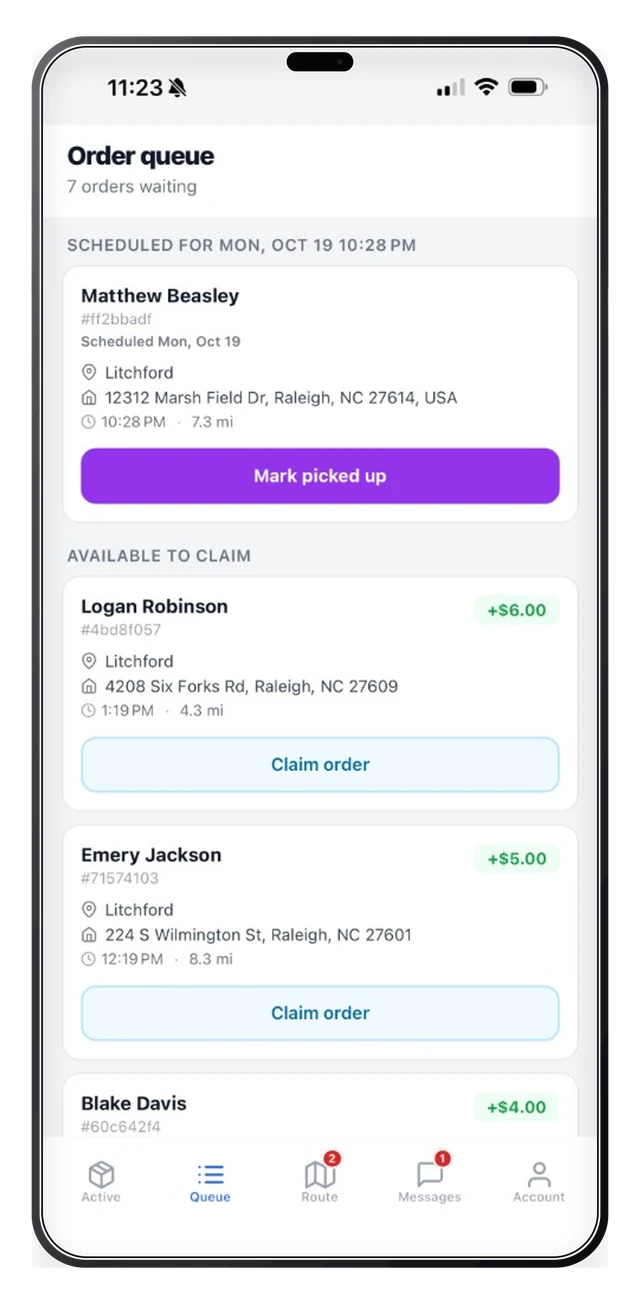
Accept or receive assignments from Queue, Active, or Route.
- 3
Pick up
Arrive at the store, grab the order, mark picked up.
- 4
Deliver
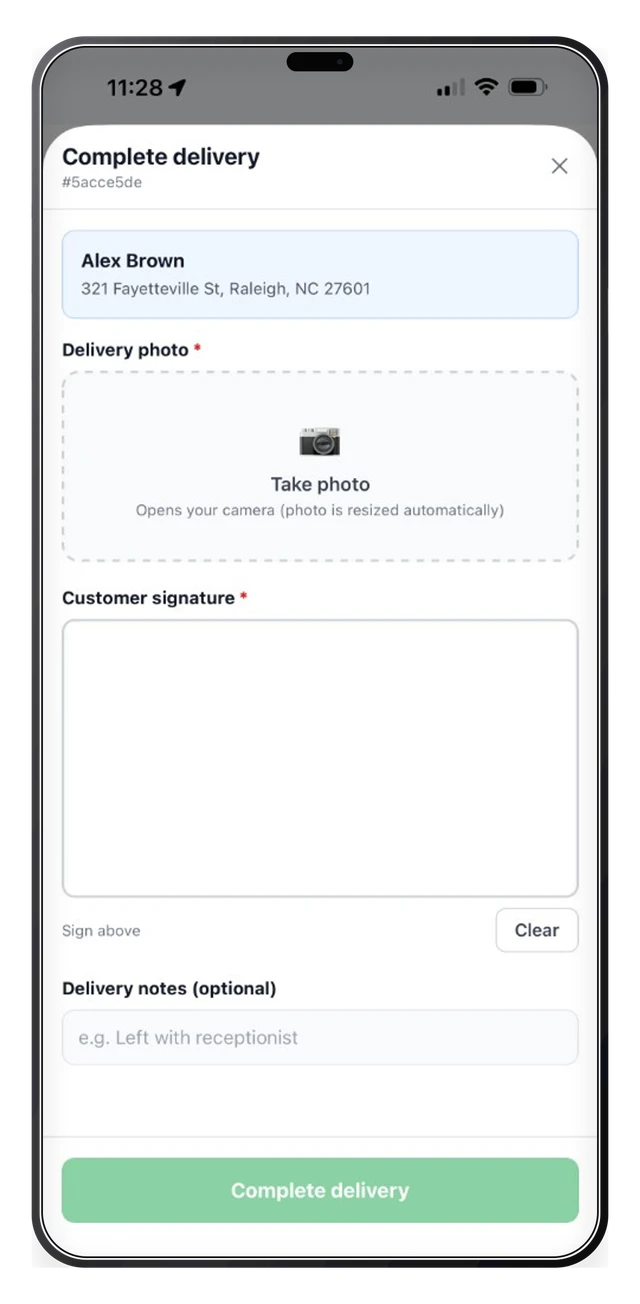
Navigate, arrive, complete delivery—and proof of delivery if required.
- 5
Next stop
Move to the next job in Queue or continue your Route.
Main tabs
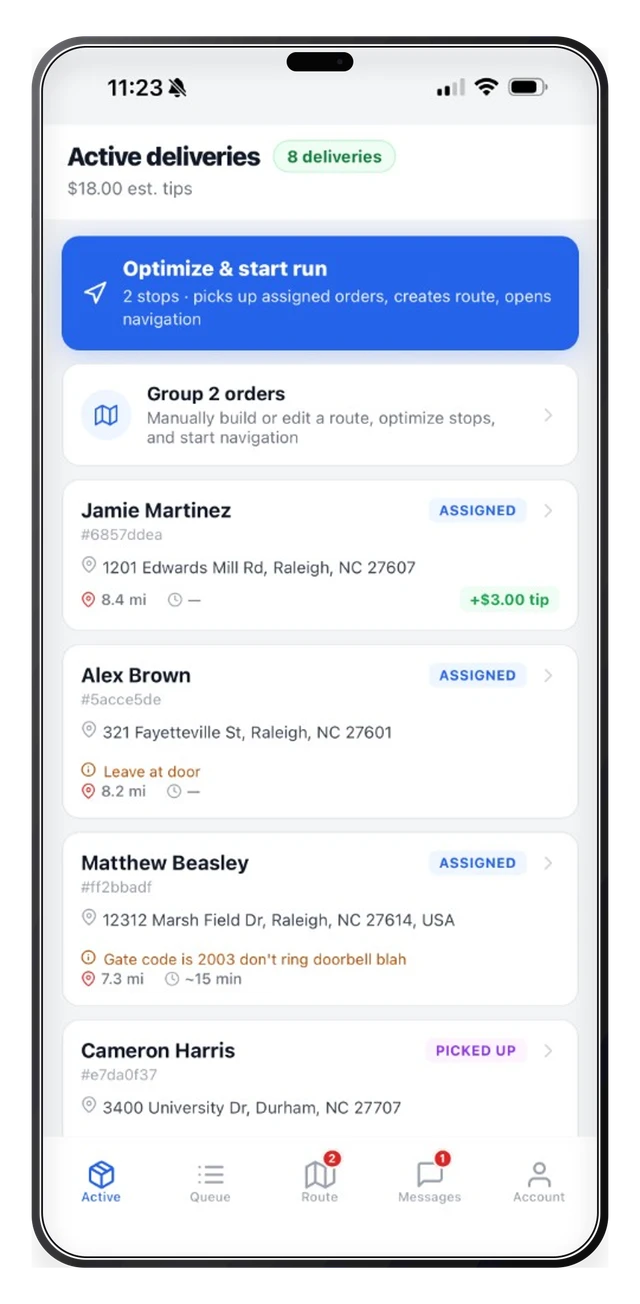
- Active · Current delivery
- Queue · Upcoming work
- Route · Multi-stop runs (if enabled)
- Messages · Chat with dispatch
- Account · Duty & profile
Tracking you can trust
Shipora only asks for what the delivery workflow needs. Details live in our Privacy Policy.
Location while on duty
Helps dispatch assign nearby work and show progress on the map. Go off duty when your shift ends to stop sharing.
Camera for proof of delivery
Used for photos or signatures when your business requires proof. If POD is off or optional, you may not see those prompts.
Notifications
Keep alerts on so you don’t miss new assignments or messages from dispatch.
Read the Privacy Policy.
Helpful links
Short orientation here—deeper guides in documentation.
Driver app overview
Install, sign in, tabs, and the core delivery loop.
On duty & location
How duty mode, locations, and GPS sharing work with dispatch.
Proof of delivery & failed deliveries
Photos, signatures, notes, and what to do when a delivery fails.
Full documentation
Browse the help center for dispatch, orders, messaging, and more.
Support
Contact support or email support@shipora.com if you’re stuck.
SMS Terms
If you get invite or delivery texts from Shipora, here’s how messaging works.
Looking to invite drivers?
Use the Shipora dispatch console → Settings → Drivers. Drivers use the mobile app; your team runs dispatch on the web.